
Although NBS Create was retired a number of years ago, it is still possible to import NBS Create specification files into NBS Chorus should you wish to. This knowledge article explains this process. Please also refer to the separate Importing from NBS Create - What will and will not be imported? for additional information.
Step by Step Process
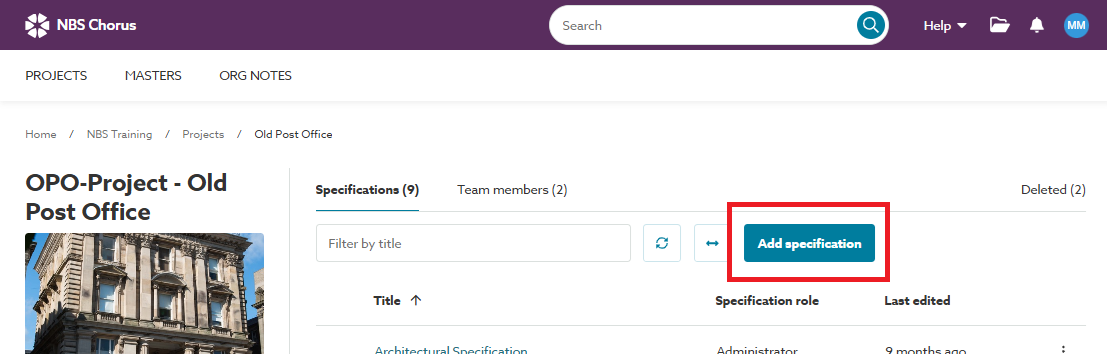
1) Open the project (or master folder) you would like to import your NBS Create specification into and click the Add Specification button:
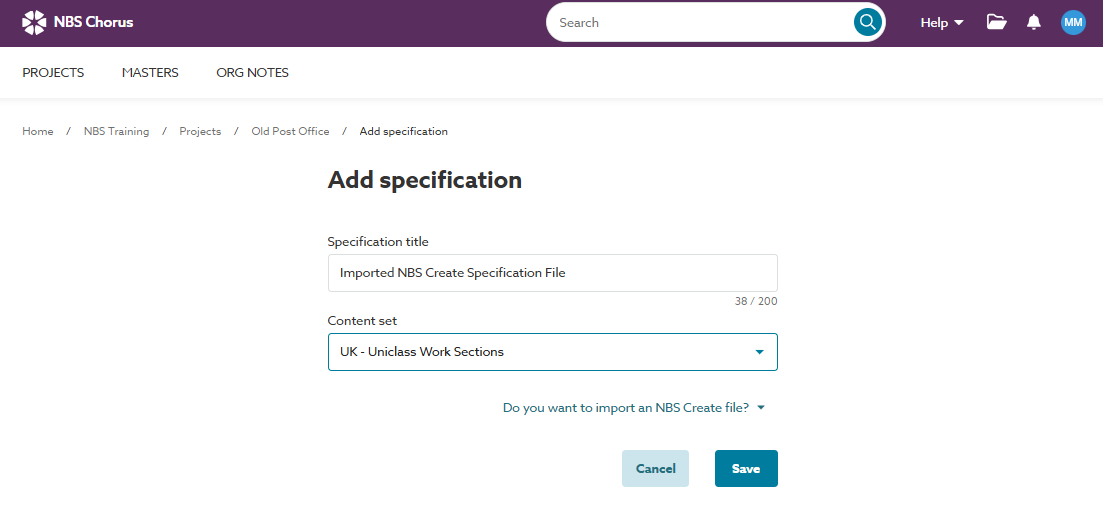
2) Give the specification a title and select the UK - Uniclass Work Sections option in the content set field. Importing NBS Create specification files is only available with this specific content set:
3. Click on the Do you want to import an NBS Create file? link below the Content Set field. You will then be presented with further options:
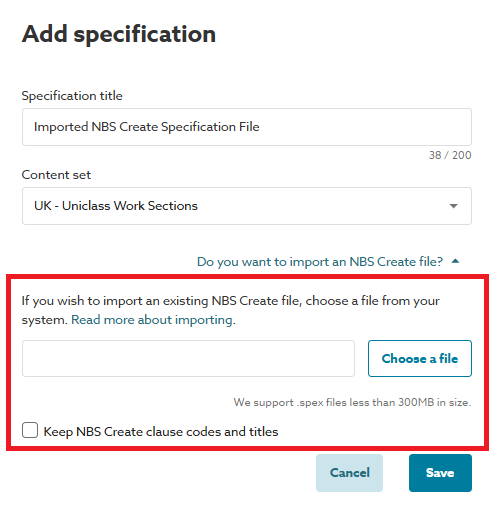
4. Click the Choose a file button, then browse to and select the existing NBS Create (.spex) file you wish to import from your device or network.
5. (Optional step) Tick/ select the Keep NBS Create clause codes and titles checkbox if you want to retain the same clause codes and titles from NBS Create. Do not select this option if you want Chorus to convert the clause codes and titles into Uniclass. Please refer to the separate Keep NBS Create clause codes and titles support article for additional information on this option.
6. Click Save.
7. You will then see a message indicating that your file has been uploaded and the import process has started:
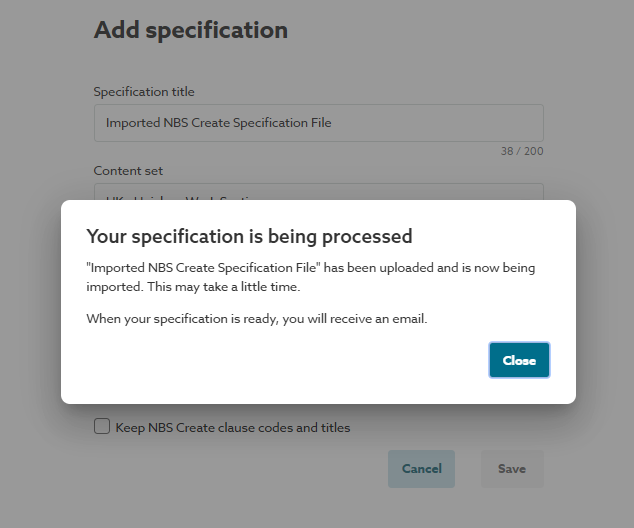
8. Click the Close button to close the message dialog. During the import process, the specification will be show in the specifications list as 'Import underway' in the 'Last edited' column:
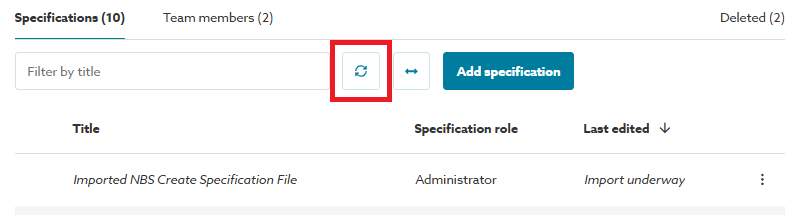
You can click the Refresh grid data button (highlighted above) during the process, if the import process has completed, 'Import underway' will change to display either a timestamp value, or 'Import failed' (please refer to the separate Failed NBS Create .spex imports support article should the import fail for any reason).
9. You will additionally receive an email once your specification has been imported:
10. Attached to the email there will be a report of what has been successfully imported into NBS Chorus and also what has not been imported:
We would recommend referring to the separate Understanding the NBS Create import report to help with reviewing the report and the imported specification file.
Should the import process fail for any reason, please refer to the separate Failed NBS Create .spex imports support article.